
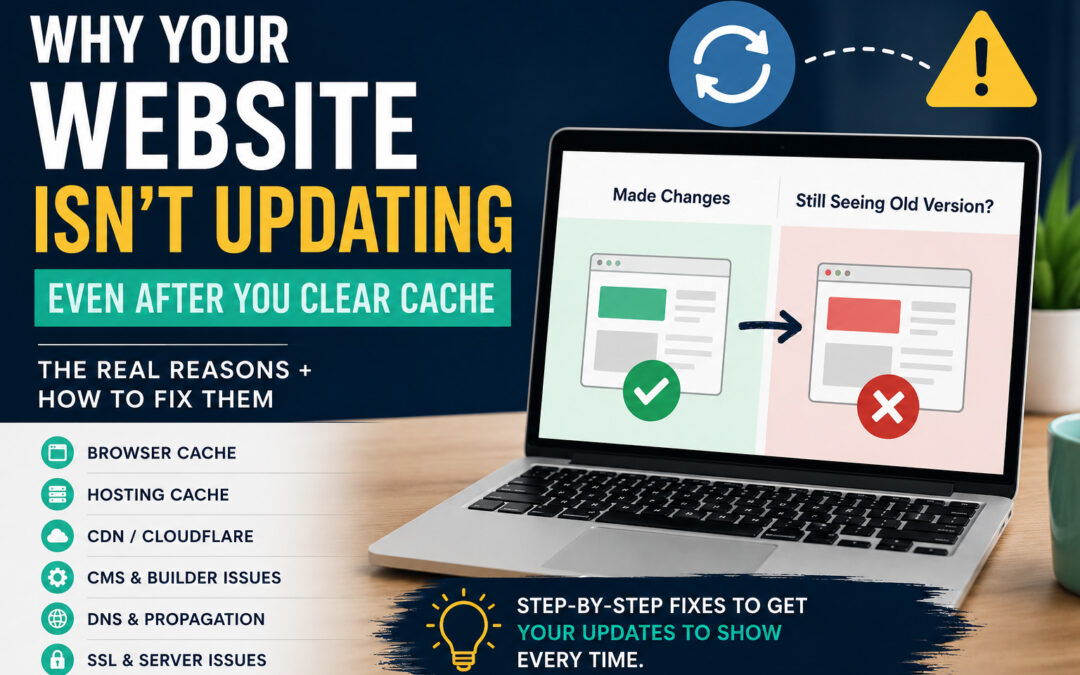
If your website isn’t updating after you make changes, it can be incredibly frustrating.
You refresh the page, clear your cache, even try another browser… and still nothing.
I’ve run into this a lot, both on my own site and with clients, and the truth is, it’s not always just a simple caching issue.
Here are the real reasons your website isn’t updating, and how to fix each one.
The Most Common Reason Your Website Isn’t Updating
Most of the time, it is caching — just not where you think.
There are multiple layers of caching, and clearing just one doesn’t always fix the problem.
1. Browser Cache
Your browser stores a saved version of your site to help it load faster.
What to do:
- Hard refresh
- Windows:
Ctrl + F5 - Mac:
Cmd + Shift + R
- Windows:
- Open an incognito/private window
- Try a different browser
2. Website or Hosting Cache
Your hosting provider may be caching your site on the server level.
Even if your changes are saved, visitors might still see the old version.
What to do:
- Clear cache from your hosting dashboard
- Clear any caching plugins
- Recheck the page
3. CDN (Cloudflare or Similar)
If you’re using a CDN like Cloudflare, it can serve a cached version of your site globally.
What to do:
- Log into Cloudflare
- Click Purge Cache → Purge Everything
This is one of the most commonly missed steps
4. Your CMS Isn’t Updating Properly
Sometimes the issue isn’t caching — it’s the platform itself.
For example:
- WordPress not saving changes correctly
- Builder issues (like Divi)
If you’re using Divi specifically, I covered this in more detail here: https://lauragcash.com/divi-changes-not-showing/
5. DNS or Propagation Delays
If you recently:
- Changed hosting
- Updated DNS records
- Pointed your domain somewhere new
It can take time to fully update everywhere.
What to do:
- Wait a few hours (sometimes up to 24–48)
- Check from different devices/networks
6. SSL or Server Issues
Sometimes your site isn’t updating because there’s a deeper issue, like SSL or server configuration.
If you’re seeing errors (like a 526 error in Cloudflare), that’s a different fix entirely.
I walk through that here: https://lauragcash.com/cloudflare-error-526-fix
Quick Checklist to Fix It Fast
If your website isn’t updating, run through this:
- Hard refresh
- Incognito check
- Clear hosting cache
- Clear CDN cache
- Check your CMS
- Check DNS/SSL
One of these will almost always solve it
Final Thoughts
If your website isn’t updating, it’s usually not broken; it’s just being cached somewhere along the way.
Once you know where to look, it becomes a quick fix instead of a frustrating guessing game.
If you’re dealing with ongoing website issues or things just aren’t working the way they should, I offer website troubleshooting and support to help get everything running smoothly.