
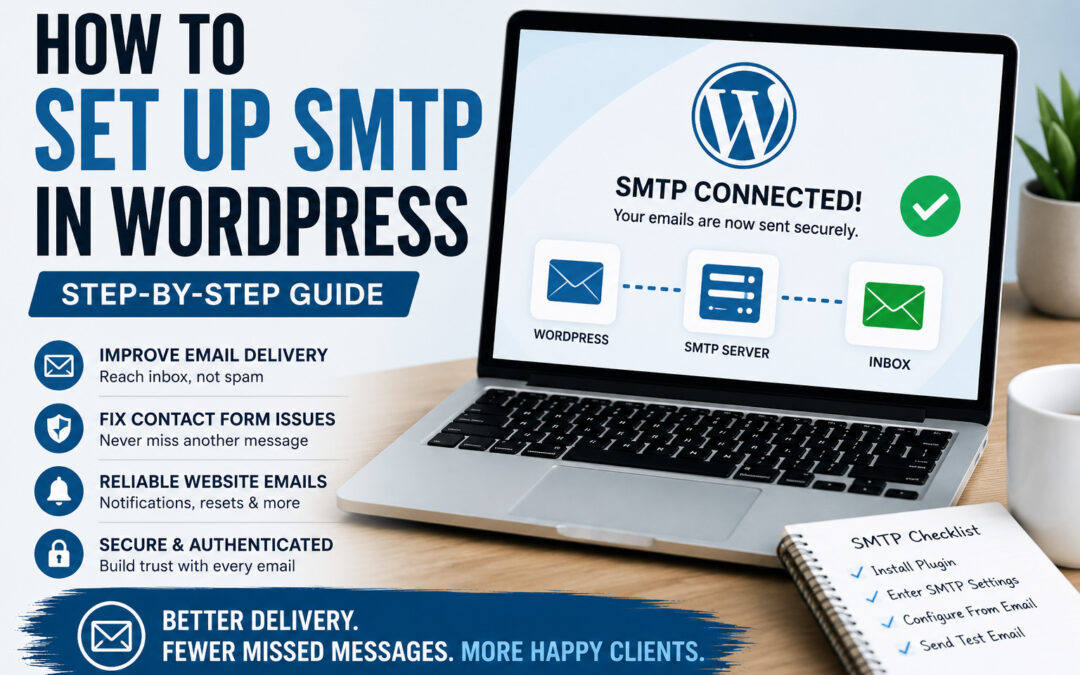
Learning how to set up SMTP in WordPress is one of the best things you can do to improve email delivery from your website.
If your contact forms aren’t sending messages, password reset emails aren’t arriving, or notifications are ending up in spam folders, SMTP is often the solution.
The good news is that setting up SMTP in WordPress is easier than most people think.
In this guide, I’ll walk you through what SMTP is, why it matters, and how to set it up step by step.
What Is SMTP in WordPress?
SMTP stands for Simple Mail Transfer Protocol.
Instead of relying on WordPress’s default mail function, SMTP sends emails through a properly authenticated email service.
This helps:
- Improve email delivery
- Reduce spam issues
- Increase reliability
- Ensure contact form submissions arrive
Without SMTP, many WordPress websites struggle with email delivery.
Why You Should Set Up SMTP in WordPress
By default, WordPress uses PHP mail to send emails.
While this works sometimes, it often causes problems because many hosting providers limit or restrict PHP mail.
Common symptoms include:
- Contact form messages never arrive
- Password reset emails fail
- Website notifications disappear
- Emails land in spam folders
Setting up SMTP solves these issues by authenticating your emails properly.
What You’ll Need Before Setting Up SMTP
Before you begin, you’ll need:
An Email Address Using Your Domain
For example: contact@yourdomain.com
Using a professional email address is much more reliable than using a free Gmail address as your website sender.
Access to Your Email Provider
Examples include:
- Google Workspace
- Microsoft 365
- Zoho Mail
- Hosting email accounts
You’ll need access to SMTP settings from your provider.
Step 1: Install an SMTP Plugin
To set up SMTP in WordPress, you’ll need a plugin.
Popular options include:
- WP Mail SMTP
- FluentSMTP
Both work well, but I often use FluentSMTP because it’s lightweight and easy to configure.
To install:
- Go to Plugins → Add New
- Search for your SMTP plugin
- Install and activate it
Step 2: Enter Your SMTP Settings
Once the plugin is installed:
Go to the SMTP settings page and enter:
SMTP Host
Examples:
- smtp.gmail.com
- smtp.office365.com
SMTP Port
Common ports:
- 465 (SSL)
- 587 (TLS)
Enable:
✔ SMTP Authentication
Then enter:
- Email address
- Password (or app password)
Step 3: Configure the From Email Address
One of the most important steps is setting the correct sender address.
For best results:
From Email: contact@yourdomain.com
Avoid using:
yourbusiness@gmail.com
Using a domain-based email improves trust and deliverability.
Step 4: Send a Test Email
Most SMTP plugins include a built-in testing tool.
Send a test email and verify that it arrives successfully.
Check:
- Inbox
- Spam folder
- Mobile device
If the test email arrives correctly, your SMTP setup is working.
Common SMTP Setup Problems
Even after setup, there are a few common issues.
1) Incorrect Password
Double-check credentials carefully.
2) Wrong SMTP Port
Verify your email provider’s recommended settings.
3) Missing App Password
Many providers now require app passwords instead of your regular email password.
This is especially common with:
- Google Workspace
- Gmail
- Microsoft 365
4) Email Authentication Problems
Your domain should also have:
- SPF record
- DKIM record
- DMARC record
These records help verify that your website is authorized to send email.
You can review the official SMTP sending guidelines from Google if you’re using Google Workspace or Gmail for email delivery.
SMTP and Contact Form Issues
If your WordPress contact form isn’t working properly, SMTP is often the first thing I check.
I covered additional contact form troubleshooting here: Why Your WordPress Contact Form Isn’t Working
Final Thoughts
Knowing how to set up SMTP in WordPress can eliminate many of the email problems website owners struggle with.
Once SMTP is configured correctly, you’ll typically see:
✔ Better email delivery
✔ Fewer spam issues
✔ More reliable contact forms
✔ Fewer missed leads
It’s one of the simplest upgrades you can make to improve the reliability of your website.
If you’re having trouble with WordPress email delivery, contact forms, or website troubleshooting in general, I offer website troubleshooting and support to help get everything working properly again.