
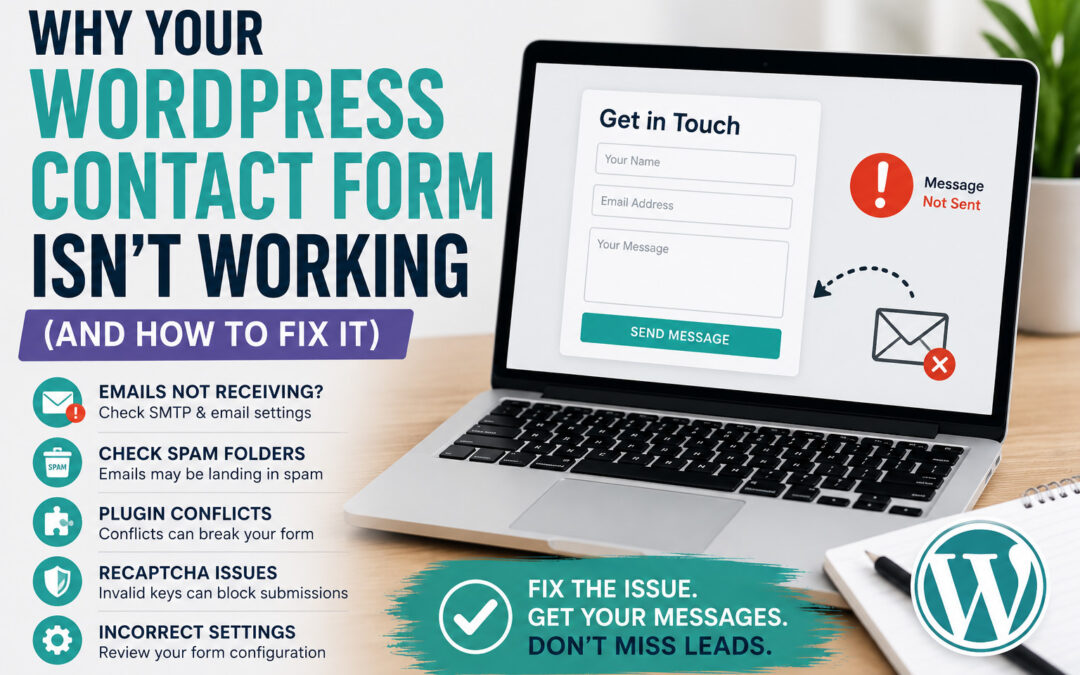
If your WordPress contact form isn’t working, you could be missing important leads without even realizing it.
One of the most common issues I see with websites is forms that appear to work, but the emails never actually arrive.
Sometimes the form stops sending completely. Other times, the messages go straight to spam.
The good news is that most contact form issues are fixable once you know where to look.
Here’s what usually causes the problem and how to fix it.
Why Your WordPress Contact Form Isn’t Working
There are several reasons a WordPress contact form might stop working.
The most common issues are:
- Email delivery problems
- SMTP not configured
- Spam filtering
- Plugin conflicts
- reCAPTCHA issues
- Incorrect form settings
In many cases, the form itself is fine — the email just isn’t making it to your inbox.
1. Your Website Isn’t Sending Emails Properly
By default, WordPress uses PHP mail to send messages.
The problem is:
Many hosting companies restrict or poorly handle PHP mail, which causes contact form emails to fail or go to spam.
What to do:
Use SMTP instead.
SMTP authenticates your emails properly and dramatically improves delivery.
Popular SMTP plugins include:
- WP Mail SMTP
- FluentSMTP
This is one of the biggest fixes for contact form issues.
You can also review the official documentation from Google about email authentication and sending best practices.
2. The Emails Are Going to Spam
Sometimes your form actually works — the emails are just landing in spam or junk folders.
Check:
- Spam/Junk folders
- Promotions tab (Gmail)
- Email filtering rules
What to do:
Make sure your domain has:
- SPF records
- DKIM authentication
- DMARC configured
These help verify that your website is allowed to send email properly.
3. Plugin Conflicts
Another common reason your WordPress contact form isn’t working is a plugin conflict.
This can happen after:
- Plugin updates
- Theme updates
- Installing new optimization/security plugins
What to do:
Temporarily disable plugins one at a time and test the form again.
Caching and security plugins are often involved.
(If your form changes aren’t appearing correctly after updates, clearing your WordPress cache can sometimes help.)
4. reCAPTCHA Issues
Google reCAPTCHA helps prevent spam, but an incorrect setup can break forms completely.
Common issues:
- Invalid site key
- Incorrect domain setup
- Expired API credentials
- Version mismatch (v2 vs v3)
What to do:
Double check:
- Site key
- Secret key
- Authorized domains
Then retest the form.
5. Incorrect Form Settings
Sometimes the issue is simply the email settings inside the form plugin.
Check:
- Recipient email address
- “From” email address
- Reply-to settings
Using a “From” email that doesn’t match your domain can cause delivery problems.
Example:
Bad: From: Gmail address
Better: From: contact@yourdomain.com
6. Hosting Limitations
Some hosting providers limit outgoing email or block certain mail functions entirely.
This is especially common on:
- Shared hosting
- Budget hosting plans
What to do:
- Check hosting email limits
- Contact support
- Use SMTP instead of default PHP mail
How to Test Your Contact Form Properly
A lot of people test forms once and assume they work forever.
Best practice:
- Submit a test message regularly
- Check all form fields
- Confirm emails are arriving correctly
- Test from mobile devices too
I always recommend testing forms after plugin or theme updates.
Final Thoughts
If your WordPress contact form isn’t working, the issue is usually related to email delivery — not the form itself.
Most of the time, the fix comes down to:
- SMTP setup
- Email authentication
- Plugin conflicts
- Spam filtering
Once those are configured correctly, forms become much more reliable.
If your website forms aren’t working correctly or you’re running into ongoing WordPress issues, I offer website troubleshooting and support to help get everything running smoothly again.